
Weather Card
A rounded rectangle makes the card, and weather tokens fill it in. The picture shows the example values previews use; on your desktop you’ll see your local weather.
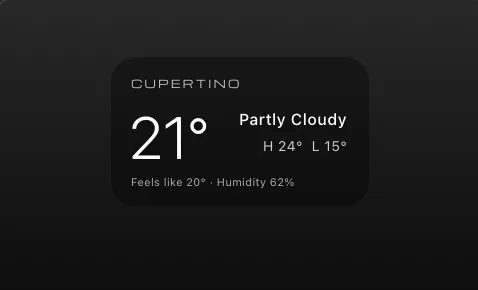
Download Weather Card.atsuraewidget and drop it on the Widgets section of your Library, or create the files yourself:
{ "$schema": "https://atsurae.app/docs/schema/widget.schema.json", "formatVersion": 2, "id": "weather-card", "name": "Weather Card", "summary": "Temperature, conditions and today's high and low.", "author": "Atsurae", "version": "1.0", "elements": [ { "type": "shape", "shape": "rect", "size": [0.26, 0.15], "cornerRadius": 0.025, "fill": "#00000059", "shadow": false }, { "text": "{weather.location|upper}", "font": { "family": "Michroma", "size": 0.011 }, "tracking": 0.2, "opacity": 0.75, "alignment": "leading", "offset": [-0.11, -0.05] }, { "text": "{weather.temperature}", "font": { "size": 0.06, "weight": "light" }, "alignment": "leading", "offset": [-0.112, 0.005] }, { "text": "{weather.condition}", "font": { "size": 0.016, "weight": "medium" }, "alignment": "trailing", "offset": [0.11, -0.012] }, { "text": "H {weather.high} L {weather.low}", "font": { "size": 0.014 }, "opacity": 0.8, "alignment": "trailing", "offset": [0.11, 0.015] }, { "text": "Feels like {weather.feelsLike} · Humidity {weather.humidity}", "font": { "size": 0.011 }, "opacity": 0.65, "alignment": "leading", "offset": [-0.11, 0.05] } ]}How it works
Section titled “How it works”- The card is the first element, so everything else draws on top of it.
"shadow": falsekeeps its edges clean. - The card is 0.26 wide, so its edges are at x = ±0.13. Text sits at ±0.11, a 0.02 margin.
- Weather tokens are empty until the first update arrives, and stay empty if location access is off and no city is set in Atsurae Settings ▸ Weather. See Weather.
- Add an icon per condition with a script (
context.weather.condition) and several image elements withvisibleWhen. - Show “feels like” only when it differs by more than 2 degrees.